How to Use Canva AI on the Free Plan: A Practical Guide
Use Canva AI on the free plan without wasting your monthly allowance: create a design from one clear prompt, finish it by hand, handle Urdu text and follow the rules.
How do you use Canva AI for free?
Sign in to Canva, select Canva AI on the homepage, describe the design you want and press Enter. Then open the result in the editor and correct it by hand. On the free plan, Canva lists up to 20 AI uses a month, and complex requests can use more of that allowance.
Canva AI can give you a first draft of a poster, social post or presentation from a sentence. The catch on a free account is the small monthly allowance, and a generated design still needs a human check. This guide shows a simple way to use each request well, including how to handle Urdu text. Prefer Urdu? Read the Urdu version of this guide.
How this guide was checked: Plan limits and terms were read on Canva’s own pages on 5 November 2026. The same day we followed the desktop steps and ran this guide’s prompts on a Canva Free plan. That account belongs to a team whose paid subscription had ended, so a brand-new free account may behave differently. We did not test the mobile app. The specific prompt kept our text exactly, while a vague Urdu prompt invented a heading. We made the cover of this article with Canva’s AI design generator through an AI assistant’s connection to Canva, then finished it in the Canva editing tools.
What the free plan includes
| Question | Canva’s answer (checked 5 November 2026) |
|---|---|
| Which version do free users get? | Canva AI 1.0 features and some AI tools with limited monthly usage. Canva AI 2.0, with conversational editing in the design, needs a paid plan. |
| How much can I use? | Up to 20 uses of Standard or Premium AI tools per month. These tools share one allowance. Ultra AI tools are not included. |
| Is 20 a guaranteed number? | No. Canva calls its ranges estimates. Advanced tools and complex requests use more. |
| When does it reset? | At 12:00 a.m. UTC on the first of each month. That is 5:00 a.m. in Pakistan. |
| What happens at the limit? | Canva’s help page says free users see short pauses between generations for Standard and Premium tools. When our test account reached the limit, Canva AI said it could not generate until 1 December and offered an upgrade, so be ready for a full stop. |
| Where do I check my balance? | Profile icon, then Settings, then Billing, then AI usage. Our account showed a percentage and reset date, not a count of uses. |
Canva’s help pages describe a few tools, such as Magic Write, in slightly different ways, and limits can change. Treat the usage meter in your own account as the final answer. The pricing page has the current plan comparison.
How to make your first design with Canva AI
- Write the exact text firstDecide the headline, date, price and contact details before you open Canva. Facts typed in advance are less likely to be changed or invented.
- Open Canva AIOn the desktop homepage, select Canva AI in the side navigation. Canva’s mobile steps are listed separately in its help page.
- Describe one designSay what it is, who it is for, the size, the style and the exact words. You can also speak the prompt using the microphone icon.
- Add context if usefulThe plus icon can offer Upload, Add from Canva and other options. Upload only files you have the right to use.
- Open the result in the editorDepending on the design type, Canva opens the editor directly, or you pick a result and select Edit.
- Finish it by handCheck every word, number, name and date. Swap images, adjust spacing and fix alignment yourself. Hand edits are often quicker than asking again, and they keep your AI allowance for the next design.
A prompt pattern that saves attempts
A vague request leaves Canva to guess, and every guess may cost a use. Include these details:
Make a poster for my shop.
Create a portrait A4 poster for a small bookshop's school-season sale.
Audience: parents and students.
Style: clean and bright, with plenty of empty space and no photos of people.
Use this exact text and nothing else:
Headline: School Season Sale
Line 2: 10% off notebooks, 1 to 10 March
Line 3: Noor Book Shop (fictional example)
The important line is “use this exact text and nothing else”. You can use the same habit in any AI tool. For the thinking behind it, read how to write a clear AI prompt.
A simple way to plan 20 uses
Do not count on 20 designs. In our 5 November test, two generated posters and one refused edit took the meter from 46% to 77%, and one vague prompt that made two pages took it to the limit. Your numbers may differ, so check the meter after your first design.
This is our suggestion, not a Canva rule. Keep AI for the steps that are slow to do by hand.
- Start with a template when one is close enough. Editing a template does not need a generated design.
- Use one strong prompt rather than five rough ones.
- Fix small problems manually. Spelling, colour and position rarely justify a new generation.
- Save a good result as your base. Duplicate it for the next post and change only the text.
- Check the meter weekly if you rely on it for regular content.
What we noticed while making this cover
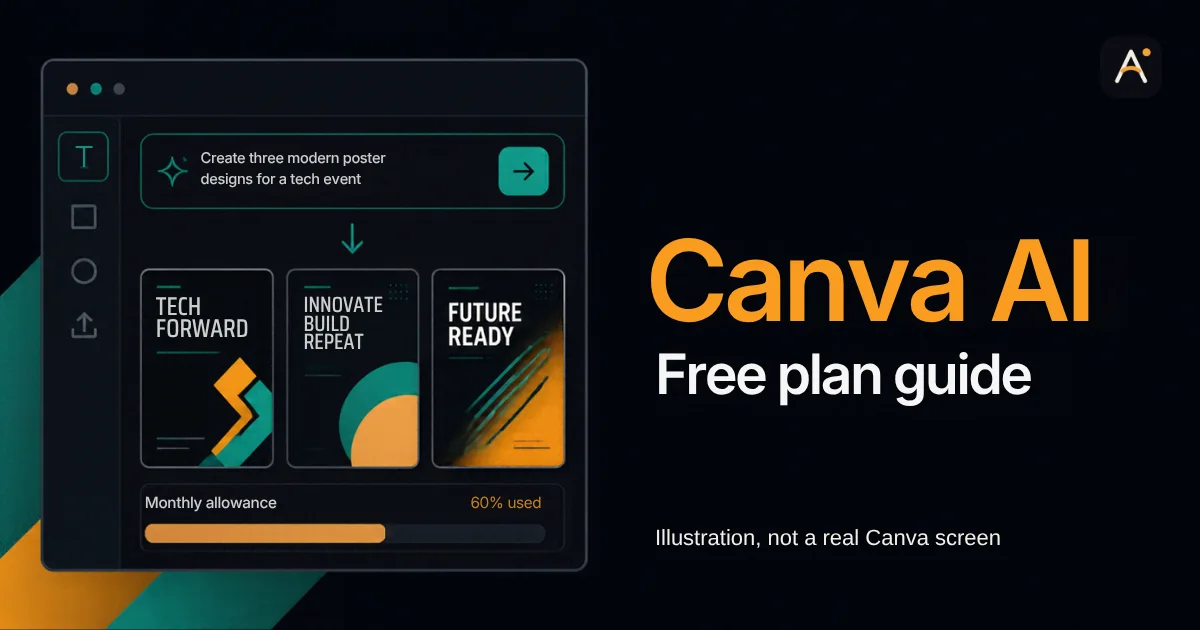
Our brief asked for a prompt bar, three small posters and a usage meter. The first result looked polished, and it also showed why review matters:
- It filled gaps on its own. The design added a sample prompt, poster titles such as “Tech Forward” and a “60% used” label. We did not supply those details. They are harmless in an illustration, but the same habit could put a wrong price on a real poster.
- A realistic mock-up can mislead. We added a line saying it is an illustration and not a real Canva screen.
- Urdu needed manual work. We typed the Urdu ourselves. One line mixing Urdu and “NotebookLM” wrapped badly on a companion cover until we widened the text box and aligned it to the right.
Using Canva AI with Urdu
Canva’s published list of Canva AI languages names Arabic and Hindi, among others, but it does not name Urdu. The wording says “including”, so the list may not be complete. Plan as though Urdu may not work reliably:
- Ask for the layout in EnglishRequest short placeholder text and enough space for a right-aligned Urdu heading.
- Type the Urdu yourselfWrite it in a notes app, have it checked, and paste it into the design.
- Align it to the rightThen check the order of any English word, number or punctuation inside the sentence.
- Read it letter by letterAI-made lettering inside an image can look like Urdu without being correct. Replace any such text with real, editable text.
Commercial use and rules to remember
Canva says you can use Canva AI for personal and commercial projects. Its AI Product Terms (effective 26 June 2026) add conditions that matter if you design for a client or sell online:
- Results may not be unique, and other users can receive similar ones. Think carefully before relying on one as a logo.
- You are responsible for your inputs and outputs, including the rights to anything you upload.
- Library content keeps its own licence. Canva gives the example of owning a generated presentation as a whole but not the library photos inside it.
- You must not mislead people into thinking AI-generated content is human-made, or remove provenance data such as C2PA metadata.
Canva skills can support freelance design work, but a tool alone does not guarantee clients or income. We explain how to judge online earning claims in our Earn With AI guide.
Common mistakes
- Publishing the first result: AI can change or invent names, dates and figures. Canva itself says outputs can be wrong.
- Using a real brand or person in a prompt without permission: You remain responsible for the result.
- Uploading private documents for convenience: Canva says your input may be shared with its technology partners to provide the feature, and your privacy settings control data use for AI improvement.
- Spending uses on small edits: Change text and colours by hand.
Frequently asked questions
Is Canva AI free?
Canva lists limited free access: up to 20 uses of Standard or Premium AI tools a month. Actual usage varies by tool and task. Ultra AI tools and Canva AI 2.0 require a paid plan.
What is the difference between Canva AI 1.0 and 2.0?
Canva describes 1.0 as focused on generating results from a single prompt. Version 2.0 lets you create and edit by chatting with AI inside the editor. It is available on paid plans.
Can I use Canva AI designs commercially?
Canva says yes, subject to its terms. Results may not be unique, library items keep their licences, and you are responsible for checking that the content is appropriate.
Can Canva AI write correct Urdu?
In our test, Canva AI accepted an Urdu prompt and replied in Urdu, but it invented a heading. On the page we checked, that heading was part of the image and could not be edited as text. Urdu typed over a placeholder started left-aligned, so we widened the box and set right alignment and right-to-left direction. Urdu is not named on Canva’s published language list, so type important Urdu yourself and check it word by word.
Can I use Canva AI on my phone?
Canva’s help page includes separate mobile steps. We did not test the mobile app, so options on your phone may differ from this guide.
What to learn next
- How to use Gemini Notebook (NotebookLM): research your topic from your own sources before you design.
- How to use ChatGPT: draft and shorten your text first.
- Creator hub: more on content work.
Sources
- Canva Help: Get started with Canva AI
- Canva Help: Understanding your AI usage
- Canva Help: Canva AI FAQ
- Canva: AI Product Terms (effective 26 June 2026)
- Canva: Plans and pricing
Last checked: 5 November 2026. Canva’s plans and AI tools change, so confirm the details in your own account before relying on them.